Developers log hours without leaving the ticket. Project managers and admins see where the time went, across people, projects and sprints.
For developers
Log hours without leaving the ticket.
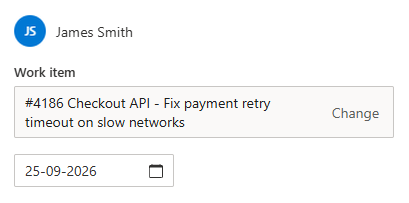
One-click logging on any work item. The time panel sits right beside the description, so there is no context switching.
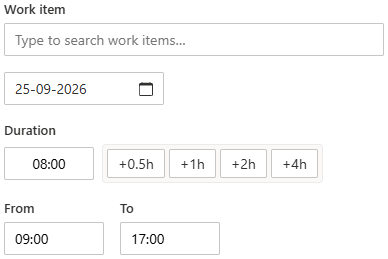
Quick-add buttons for +0.5h, +1h, +2h and +4h, or exact From/To times that snap to 15 minutes.
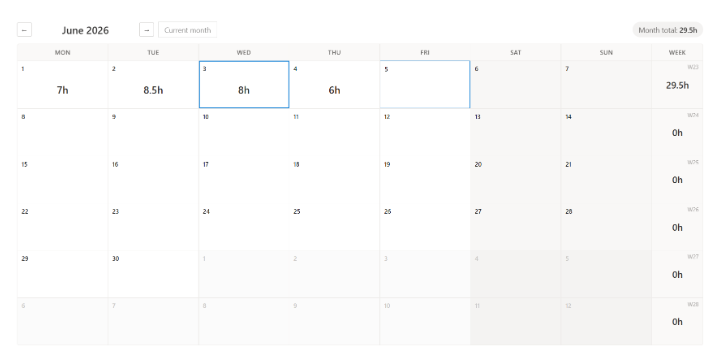
Personal monthly calendar with daily, weekly and monthly totals. Click any day to add time.
Save & add another keeps the dialog open, so you can log several entries in a row.
Late nights handled. Entries that cross midnight are split across both days automatically.
For project managers & admins
See where the time went, across every project.
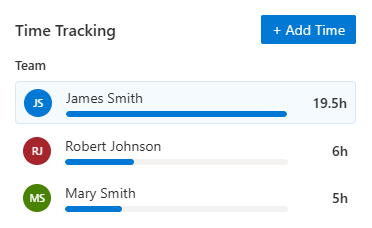
Team breakdown widget on every ticket, with per-user hours and proportional progress bars.
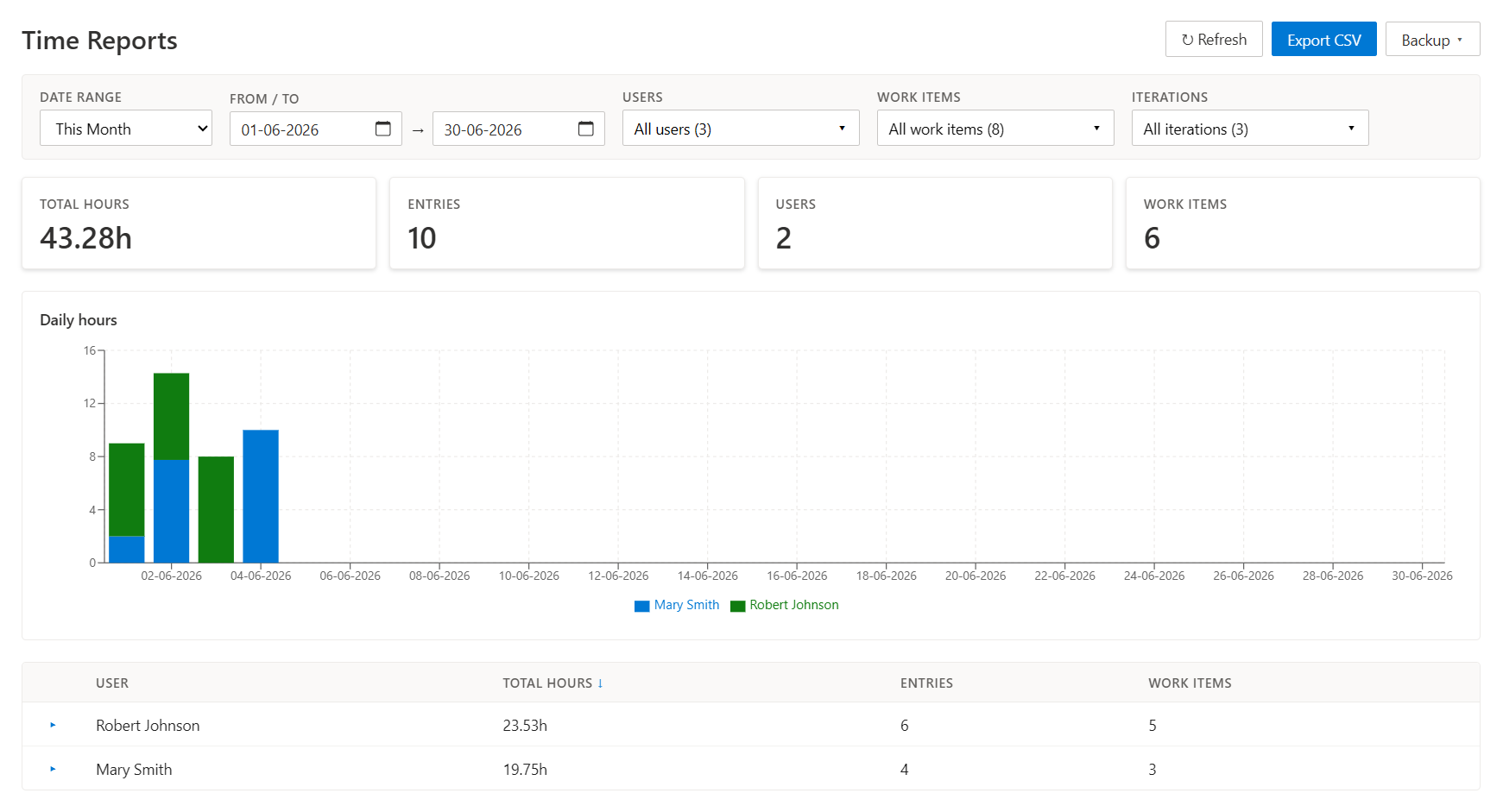
Reports hub with daily stacked charts, summary cards and per-user tables that expand to work-item detail.
Filters for date range, users, projects, work items and iteration.
CSV export with date, from/to, user, project, work item, hours and comment.
Cross-project reporting that rolls up every project, with a Project column and filter.
Roles & Organization Settings
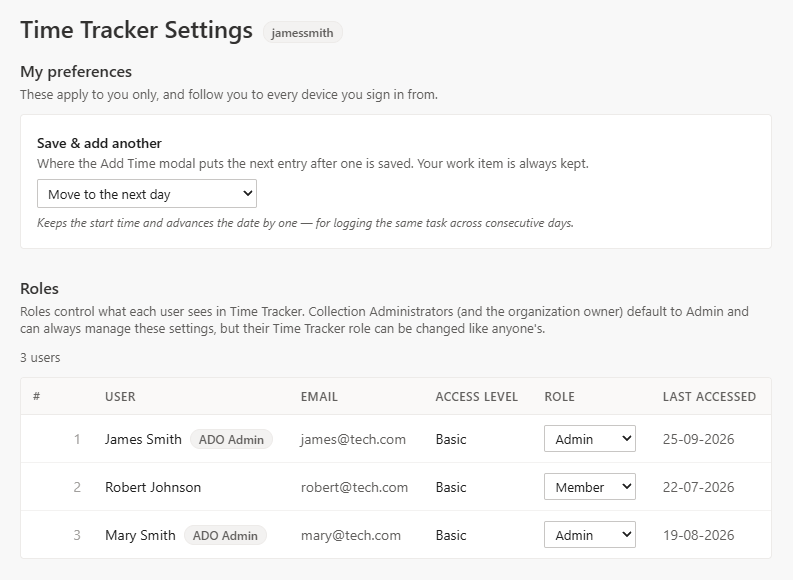
Four roles, set once for the whole organization.
Assign each user a role in Organization Settings → Time Tracker. Roles apply org-wide, across every project.
AdminFull access
Sees and edits time across all projects. Manages roles, backup and restore, and invalid entries.
ManagerRead-only · all users
Sees everyone's time for reporting, without being able to change it.
MemberPersonal view
Logs and sees their own time. The default for anyone without an assigned role.
No accessHidden
The extension is hidden for this user.
Sensible defaultsCollection Administrators and the organization owner start as Admin.
Explicit roles winA role you assign overrides Azure DevOps admin status.
No self-lockoutCollection admins always keep access to the settings page.
Entra ID groupsGroup membership is recognized, including nested groups.
Backup & restore
Back up in one click. Restore without surprises.
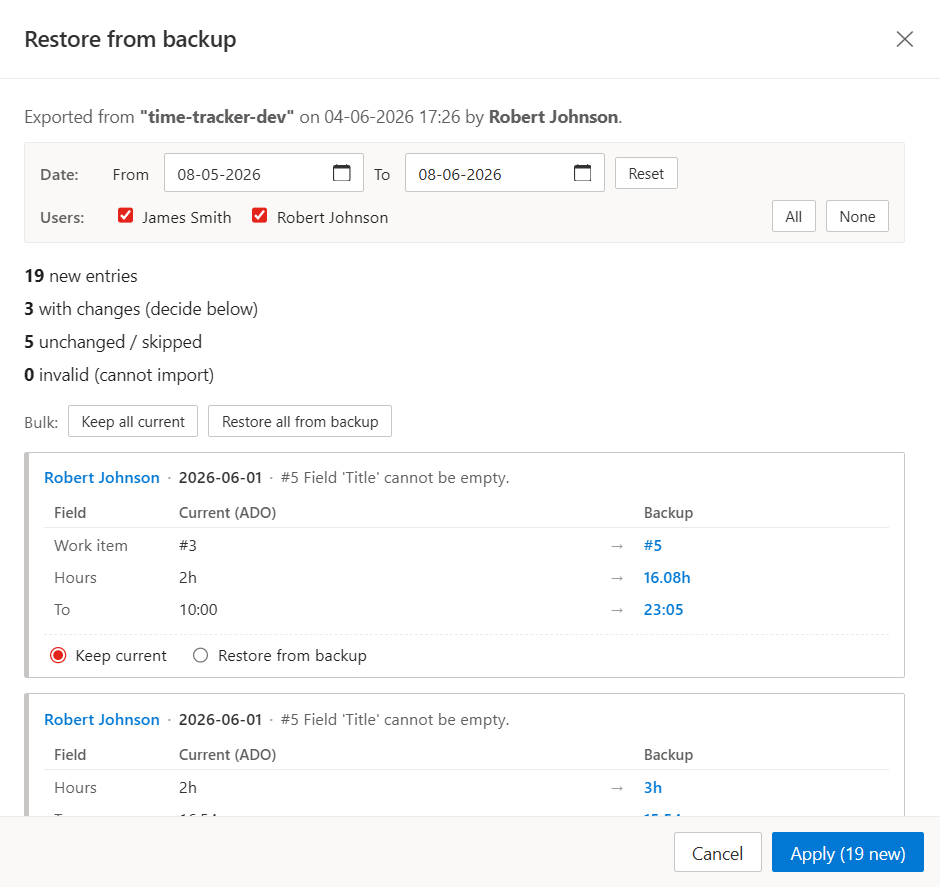
Keep a JSON copy of your team's time whenever you like, and bring it back with a preview that shows exactly what will change before anything is written.
01
Back up
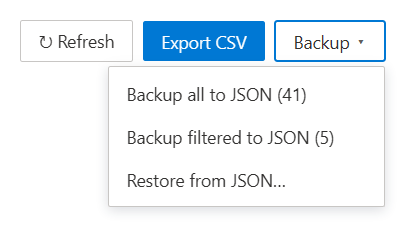
Everything, or just what you filtered. Back up every entry in your scope, or only what matches your current filters. Handy for sprint snapshots and handoffs.
Self-describing files. Every file name includes the project and a timestamp, so you always know what's inside.
Pipeline-friendly. Integrates easily with Azure Pipelines to make automated backups.
02
Restore
Dry run first. See new, changed, unchanged and invalid entries up front, and narrow the import by date or user.
You decide every conflict. Compare current and backup values side by side, then keep or restore, one entry at a time or all at once.
Smart defaults. Entries pointing to missing users or work items, or with too many hours, start unchecked.
Nothing is written until you click Apply.
Time reports
Reports that respect who's looking.
Admins and Managers see everyone's time; Members see only their own. Filter by date, users, projects, work items and iteration, then drill into any person's work items.
Export to CSV / JSON
Date, From, To, User, Project, Work Item ID, Title, Hours and Comment, ready for your spreadsheet.
Every project, one view
Cross-project reporting rolls up entries from all projects, with a Project column and filter.
Invalid-entry inspector
Admins see stale rows in one list and fix them inline: edit, delete or reassign.
Start tracking time in Azure DevOps.
Free on the Visual Studio Marketplace. Get it for your organization, then assign roles whenever you're ready.
Get it free
Installing requires Project Collection Administrator rights.


 Time Tracker